
This is a quick tutorial on how to deploy DeepSeek on a local machine. I’m running this on Windows, but you can run it on MacOS or Linux
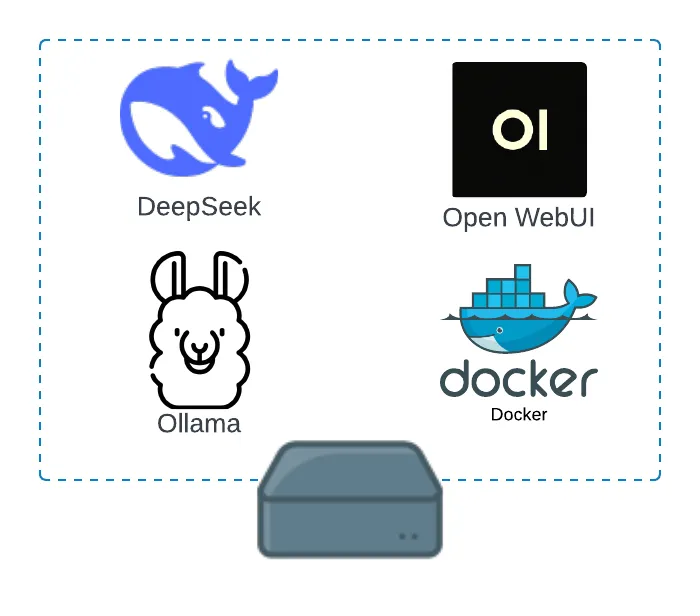
Download Ollama
Ollama is an open-source project that serves as a powerful and user-friendly platform for running LLMs on your local machine.
Navigate to https://ollama.com
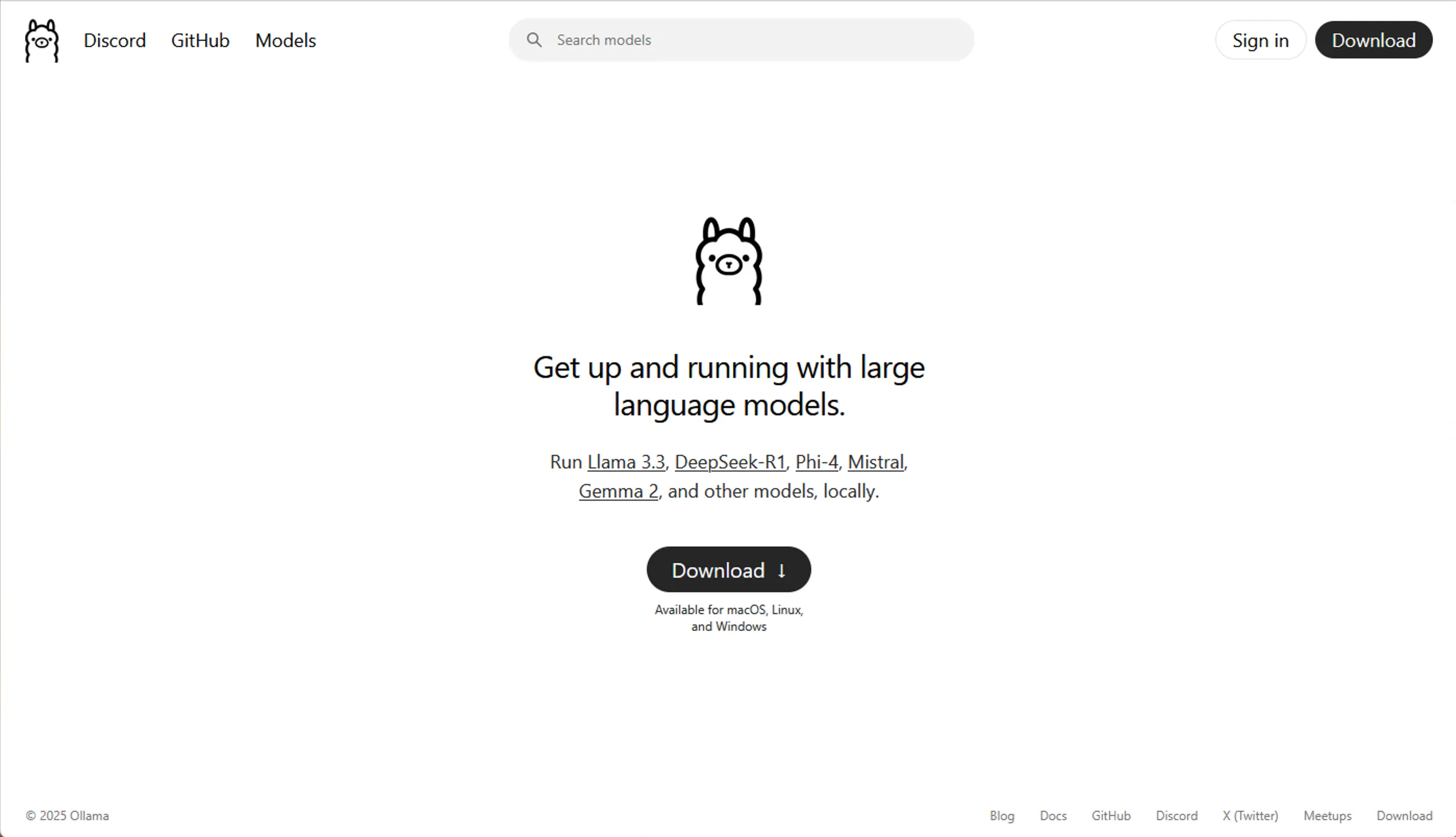
Download Ollama
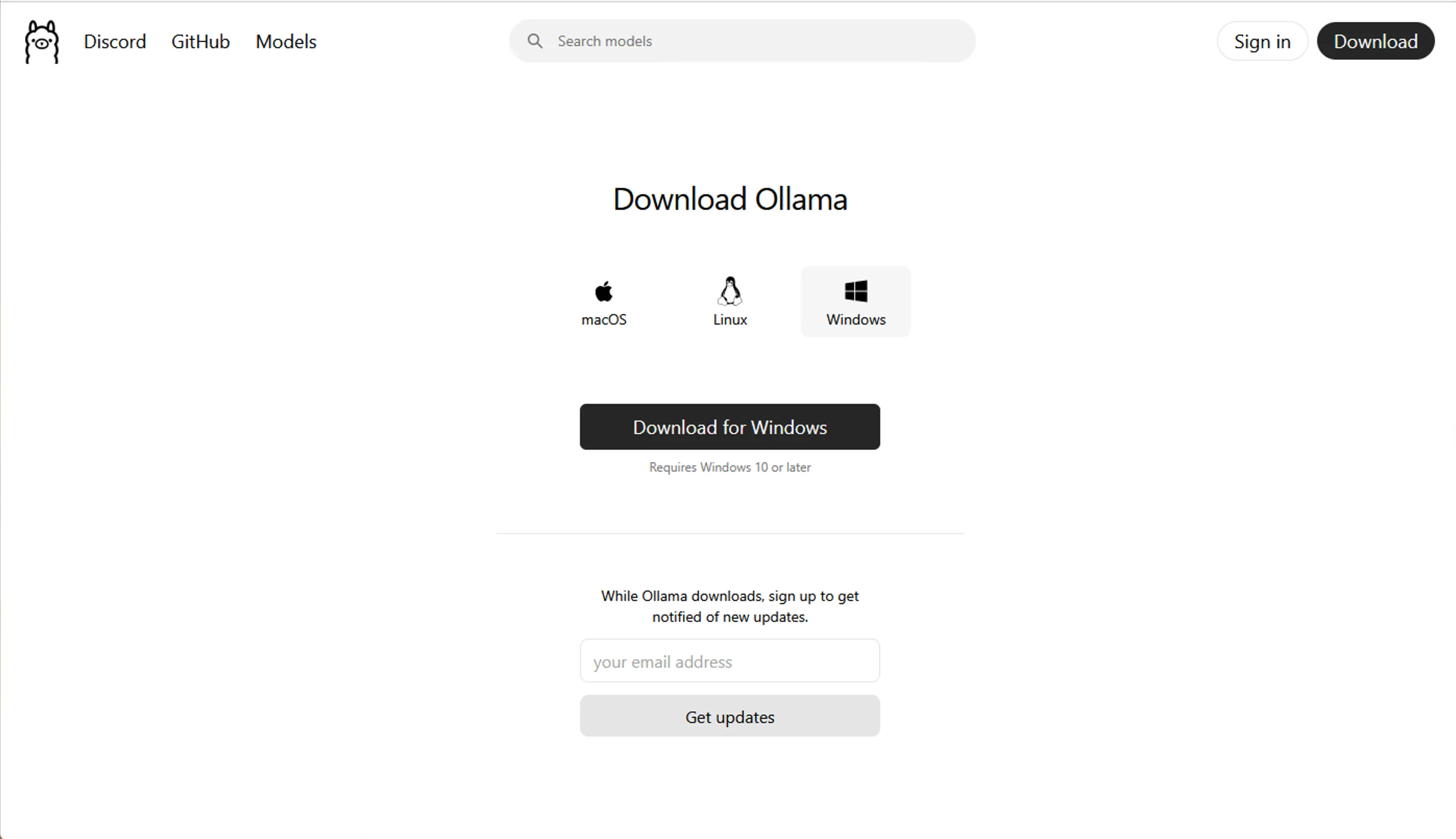
Once downloaded, locate the executable and run through the install prompts to complete the installation.
Running DeepSeek r1
From the Ollama webpage, navigate to Models and click on deepseek-r1
Since we do not have an expensive AI server, we will be using the 7 billion parameter version.
For more information on LLM sizes, you refer to this article
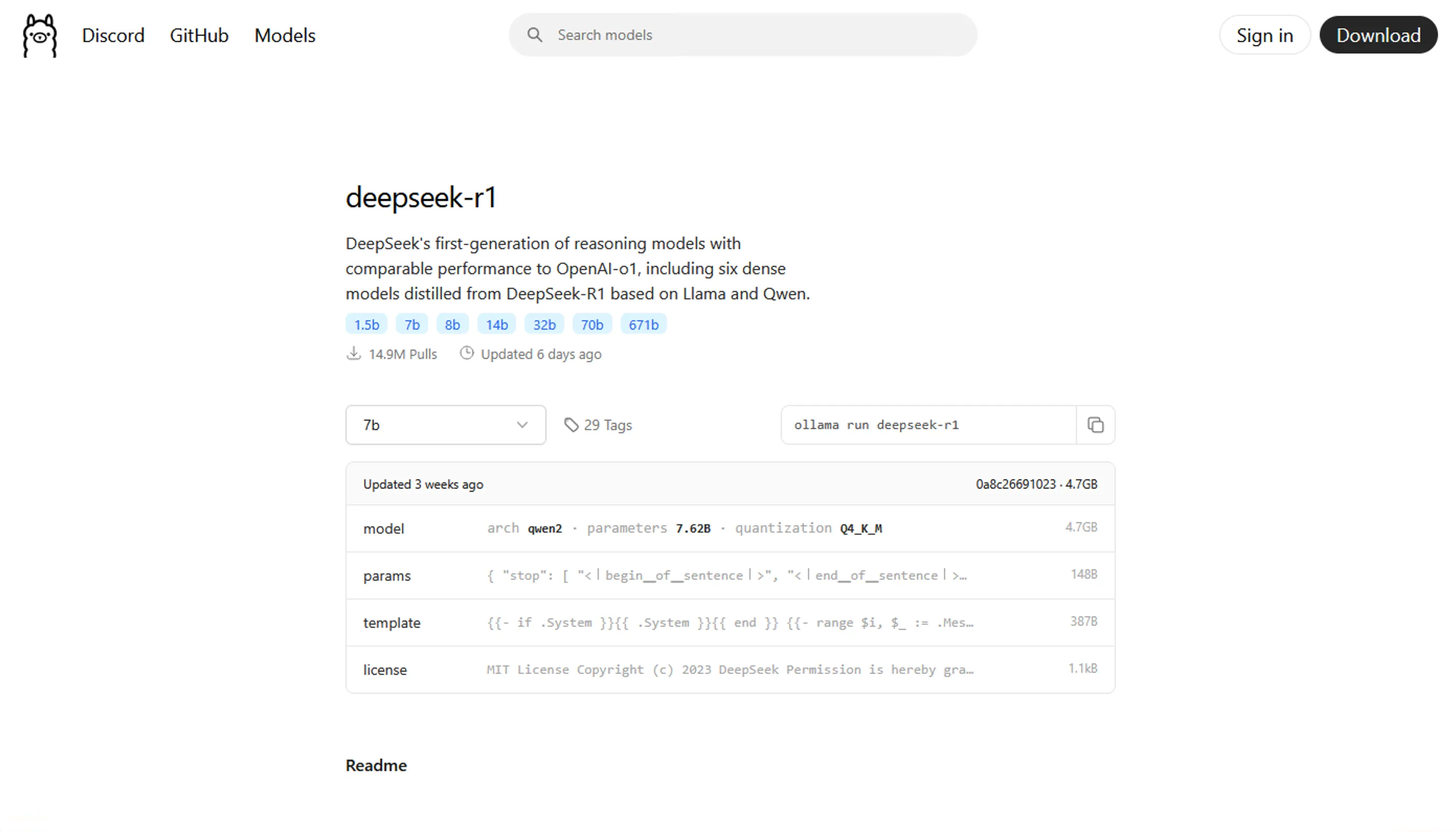
Copy the command from the website:
ollama run deepseek-r1
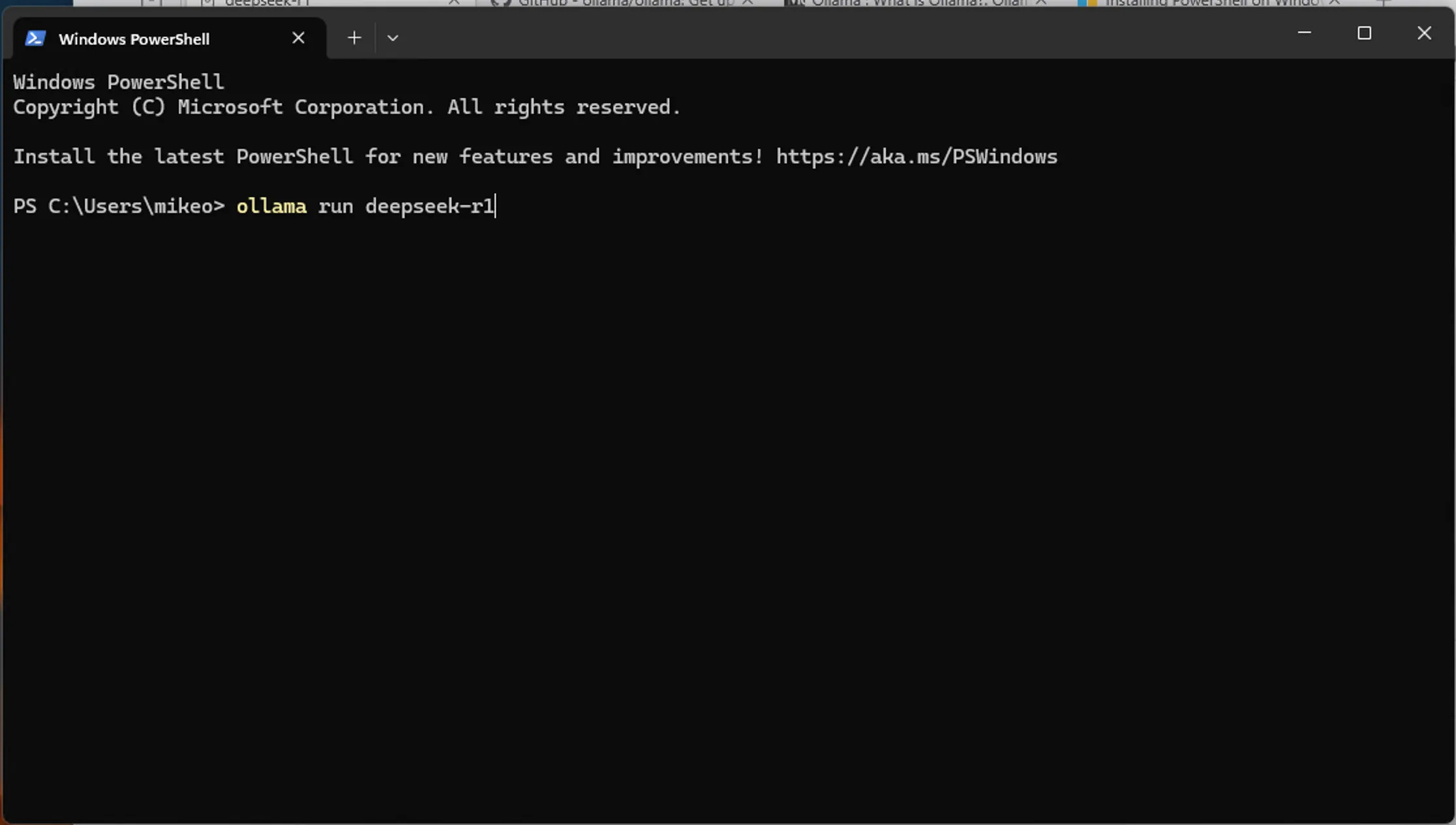
Open PowerShell and run the command:
Once the download is complete, the UI should look like this:
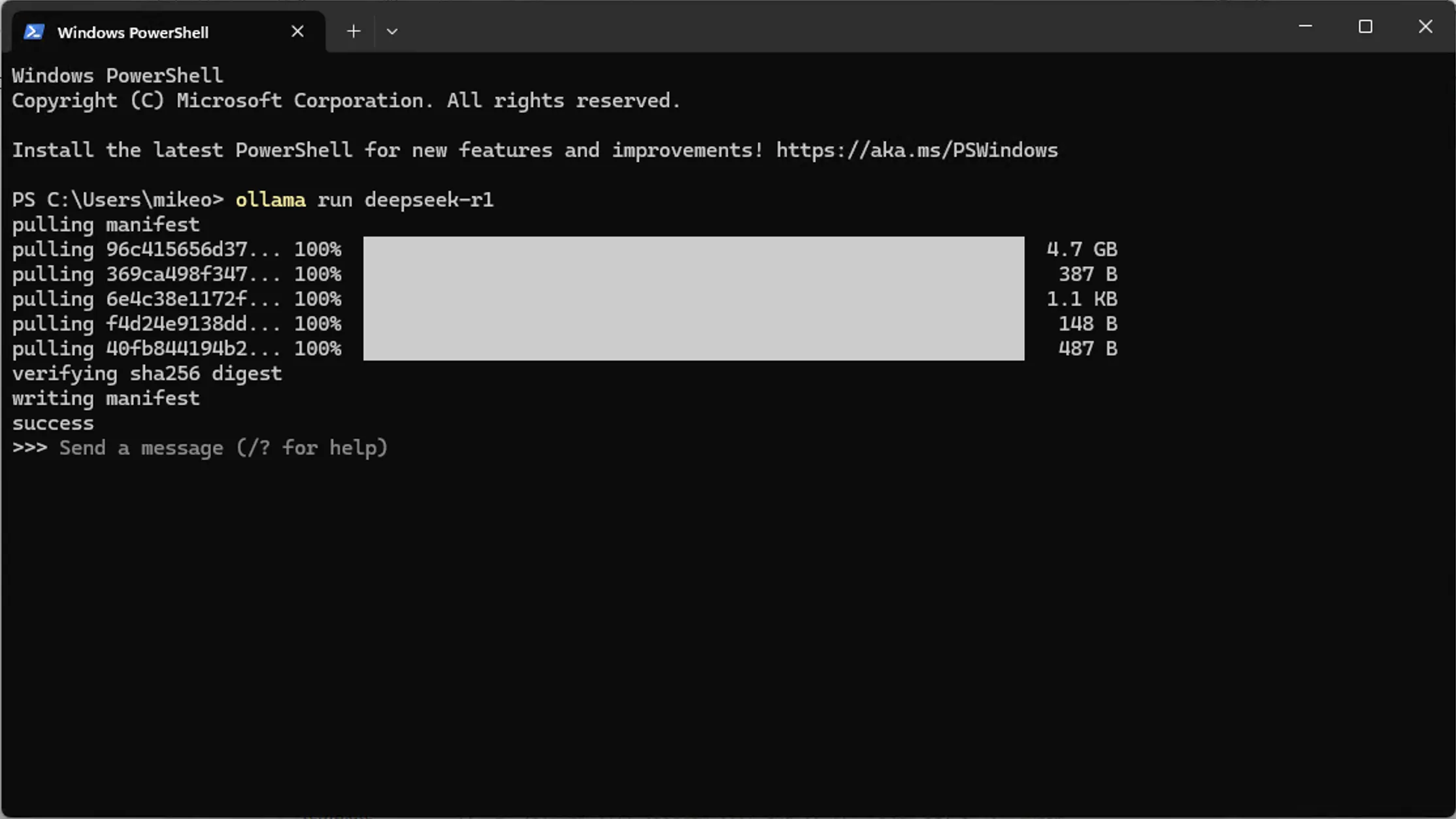
You will now issue your prompts from the CLI.
Configuring a UI for DeepSeek
We will now use Docker to run our fancy LLM UI.
Download and install docker . Make sure to set up Docker Desktop.
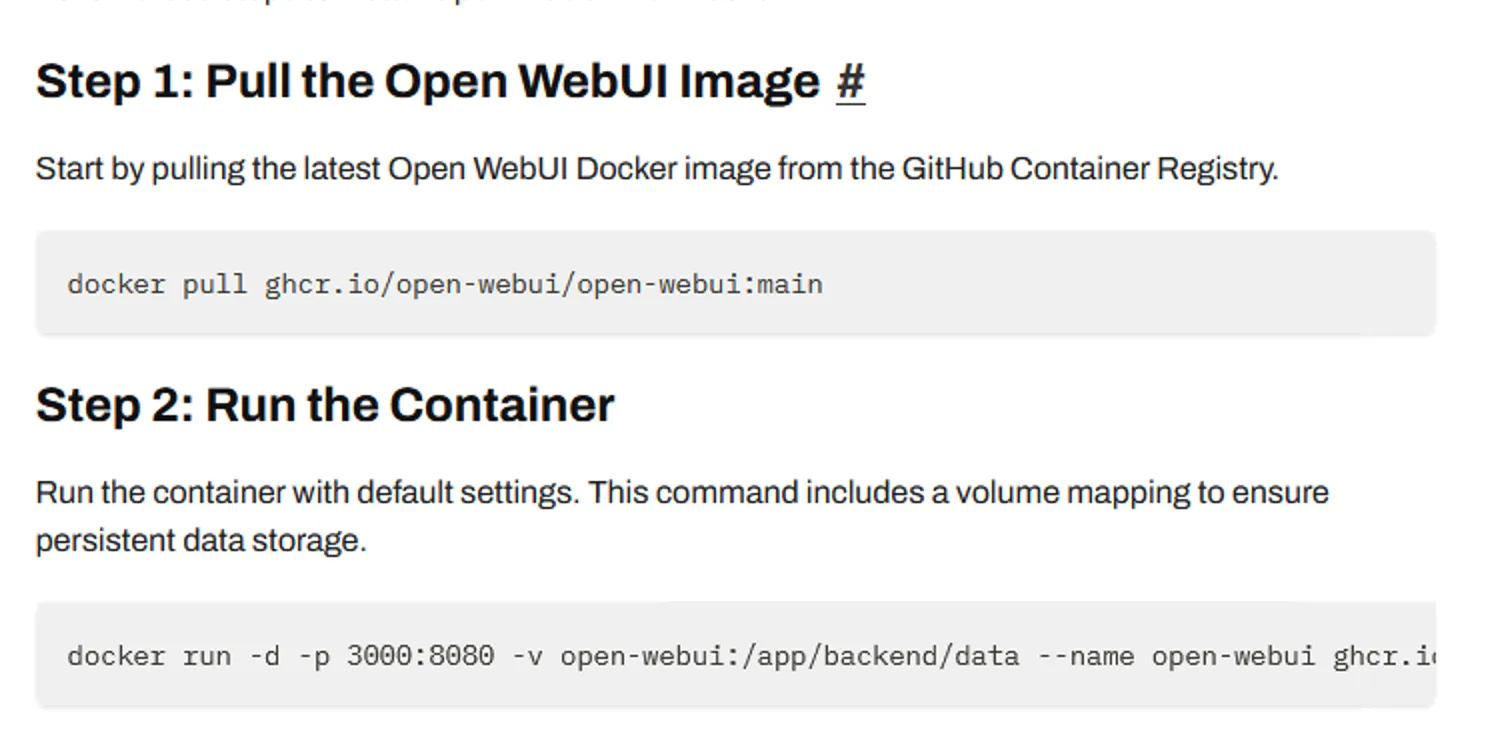
Navigate to this page to openwebui page for the relevant docker command.
Follow the steps:
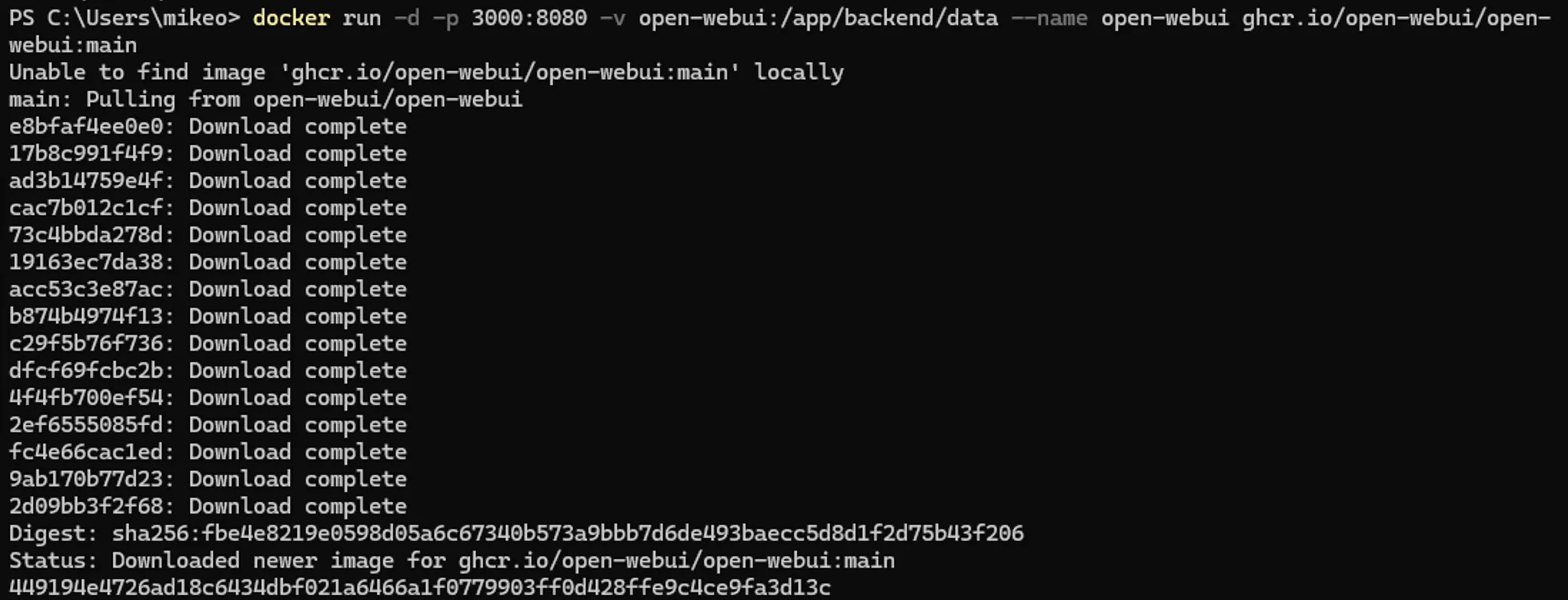
I ran the commands in PowerShell:
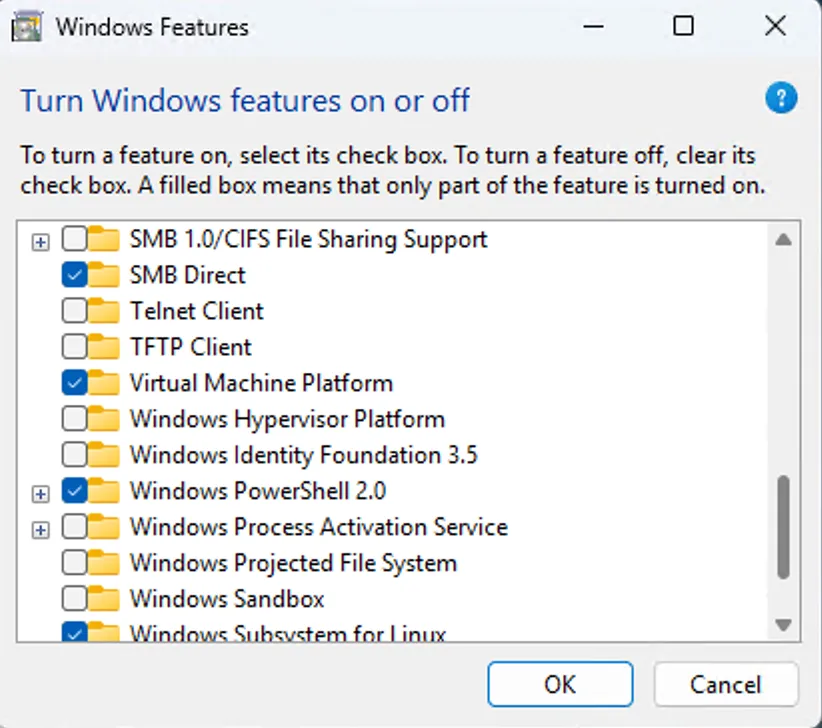
From your machine, open Windows Features and ensure to click the checkbox next to Virtual Machine Platform
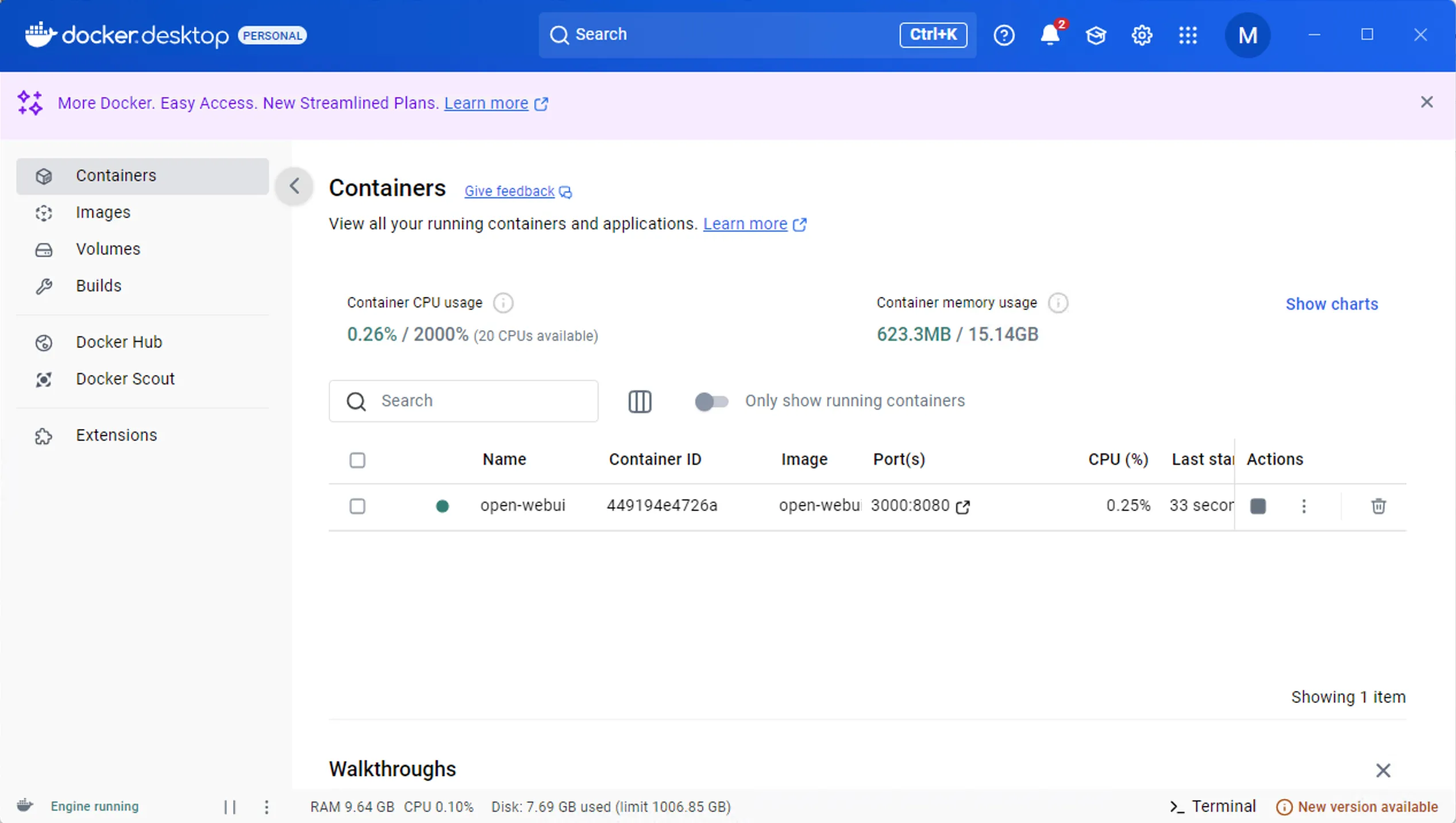
You will then open Docker Desktop to verify that the interface is running:
From Docker, you can launch the UI or open a web browser and type in localhost:3000/auth
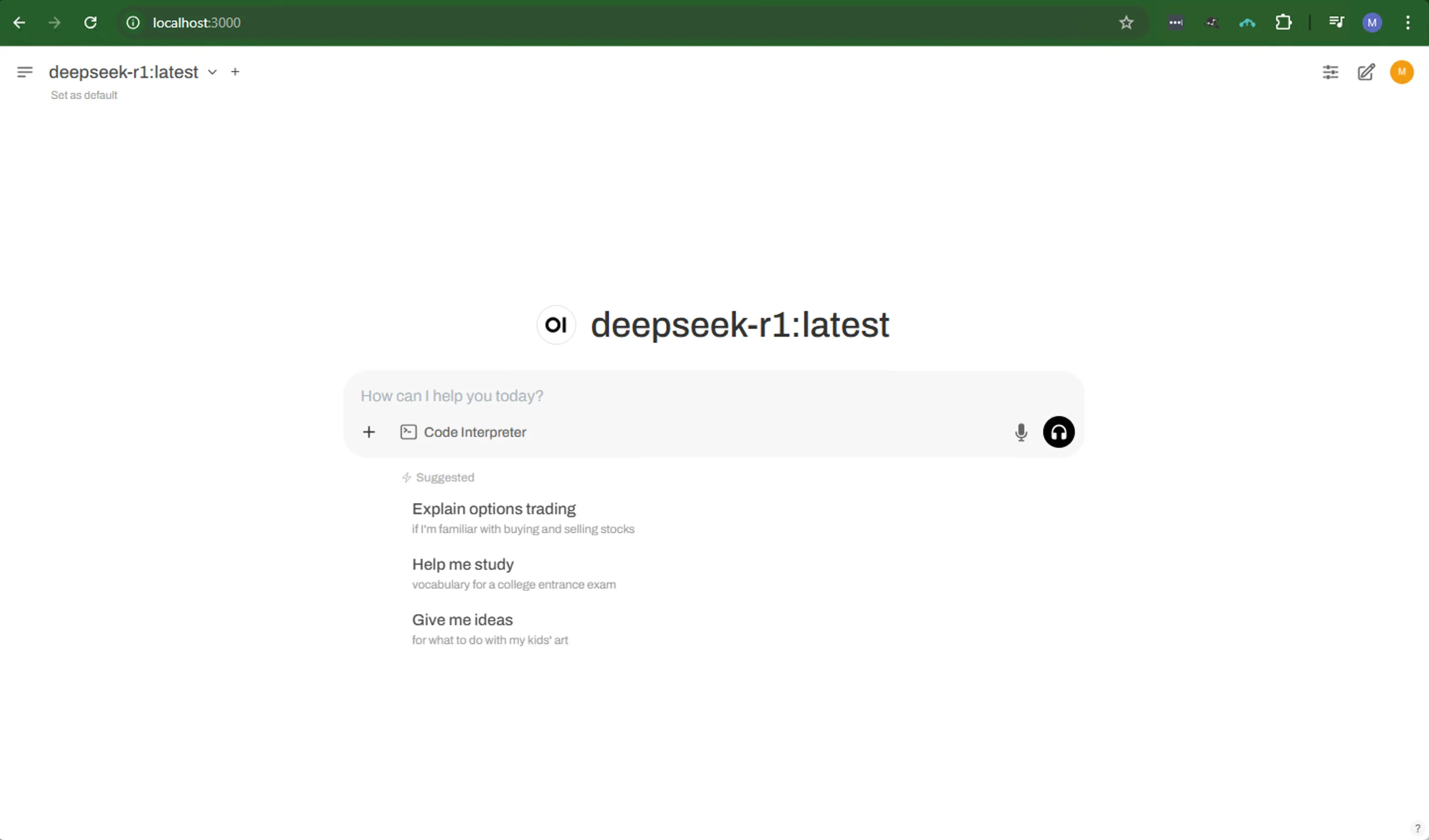
Congratulations, you are now running DeepSeek r1 locally. Feel free to shut off your NIC to test this out in offline mode.